Automation
Have AI automatically execute tasks at specified times. Set it and forget it—Alloomi will handle the rest.
⚠️ Important: All conversations and data are stored locally on your device. The app must remain open for the automation feature.
Overview
Scheduled Tasks allow you to automate recurring work:
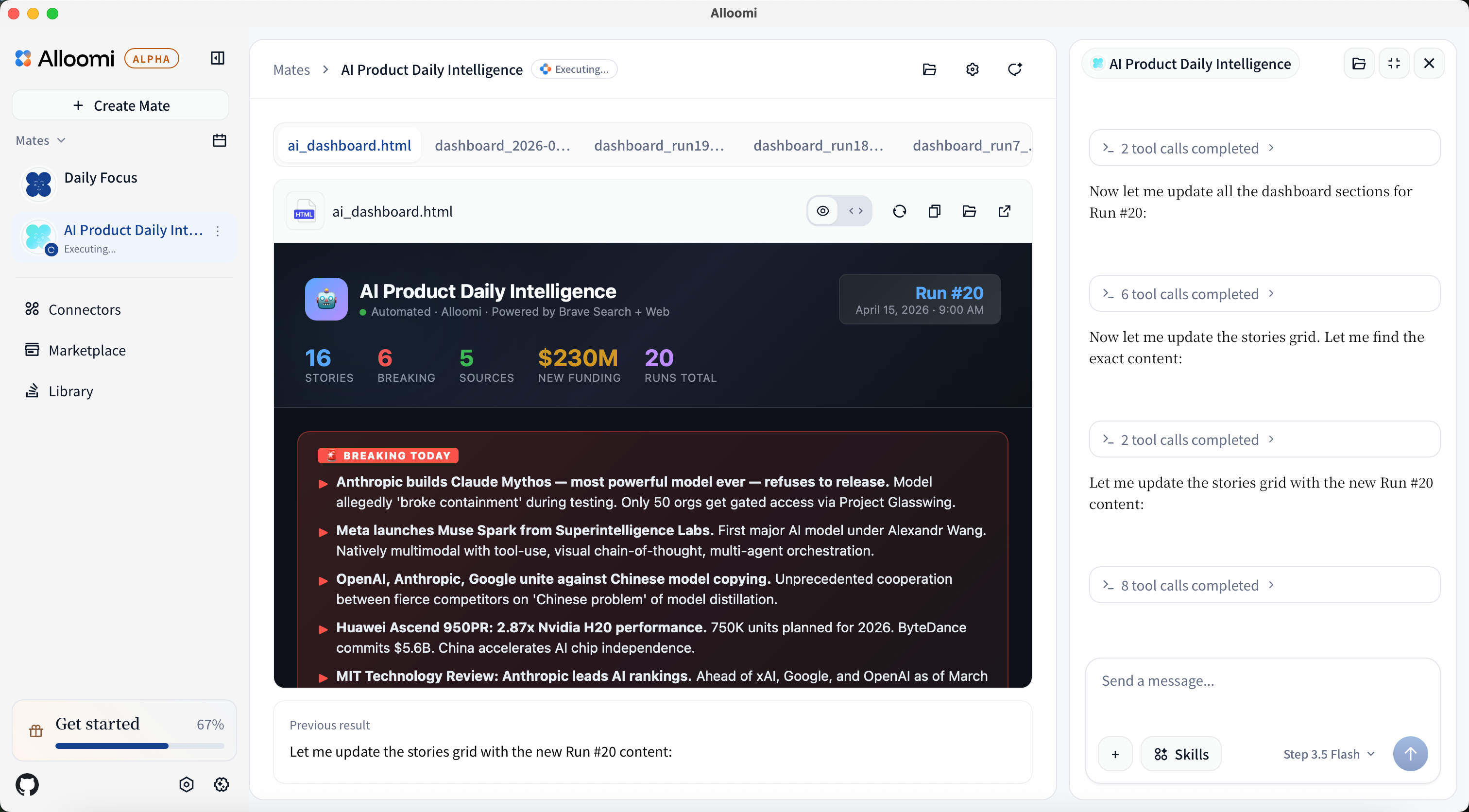
- Daily news summaries
- Weekly report generation
- Periodic data refreshes
- Custom reminders
How to Create
- Go to the Agent page, then select Automation
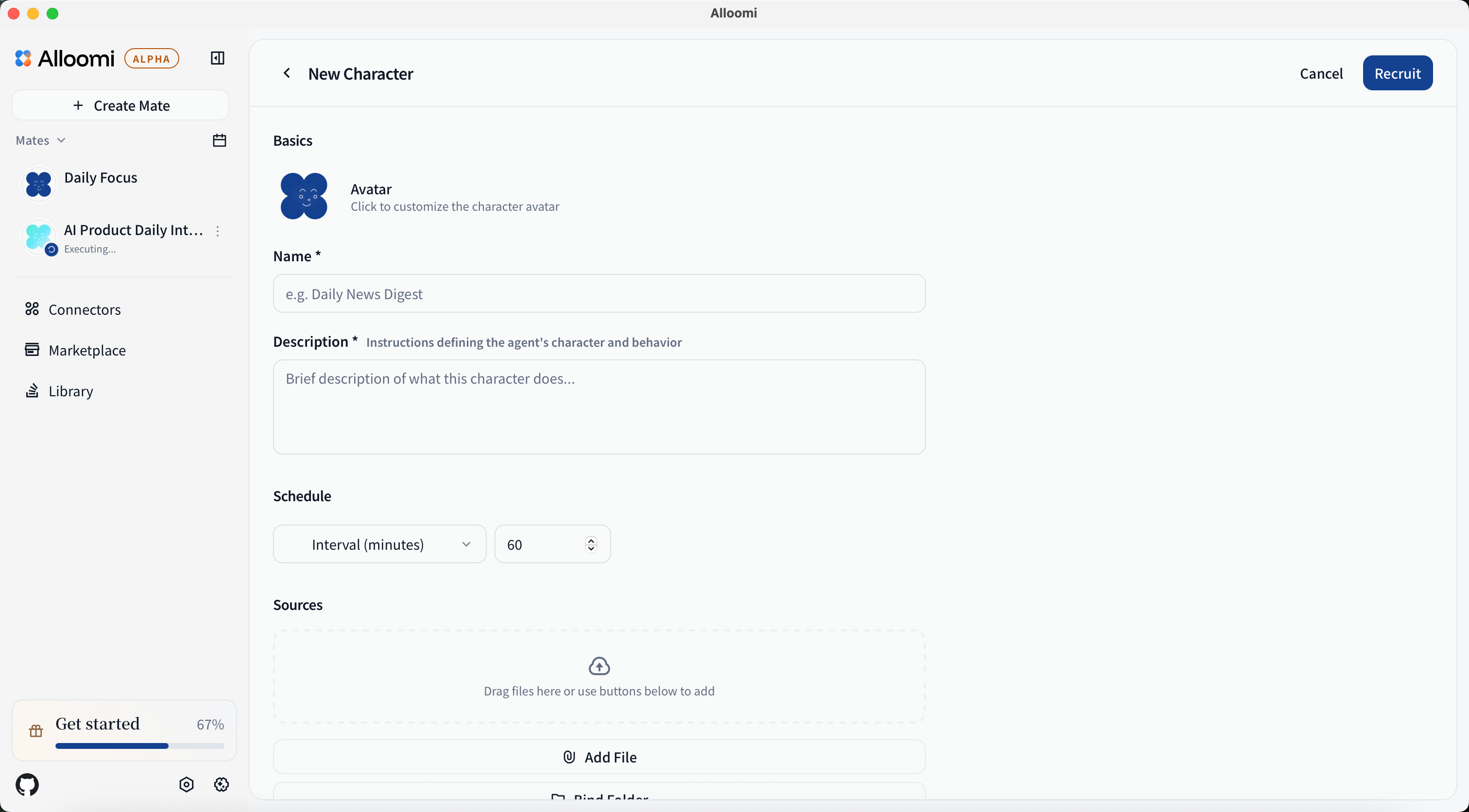
- Click “New Task”
- Fill in task information:
| Field | Description | Example |
|---|---|---|
| Task Name | Give the task a name | “Daily News Summary” |
| Task Description | Tell AI what to do | “Search latest AI news, summarize and send to me” |
| Schedule Type | Cron/Interval/Once | 0 9 * * * = 9am daily |
| Timezone | Time reference | “Asia/Shanghai” |
Schedule Types
Cron Expression
Use standard cron syntax for flexible scheduling:
0 9 * * *— Every day at 9am0 9 * * 1— Every Monday at 9am0 0 1 * *— First day of every month
Interval
Run every X minutes/hours:
- Every 30 minutes
- Every 2 hours
- Every 6 hours
One-Time
Run once at a specific time:
- December 25, 2026 at 10am
- January 1, 2027 at 9am
Manage Tasks
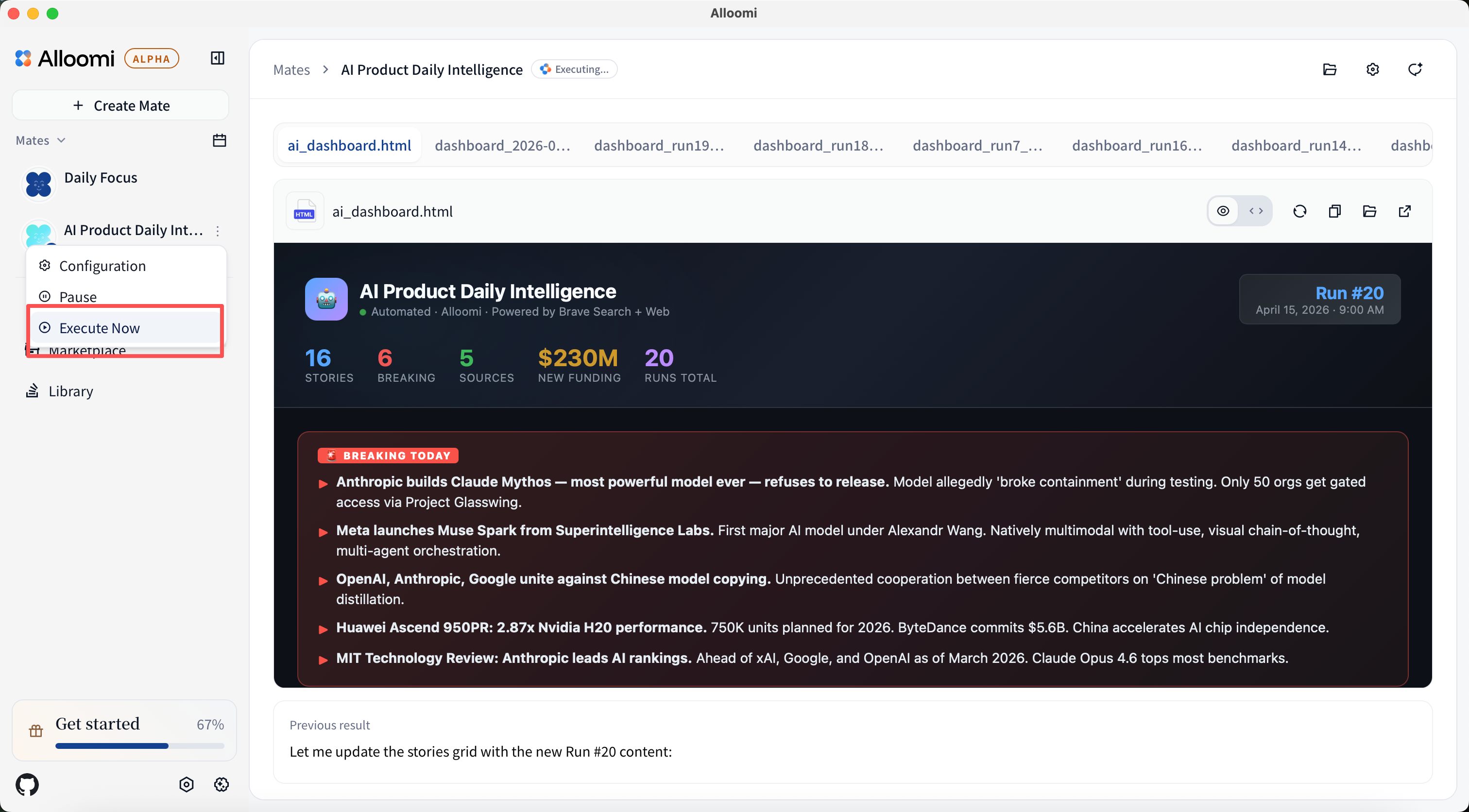
View Tasks
- See all your scheduled tasks in one place
- View task status (enabled/disabled)
- See next scheduled run time
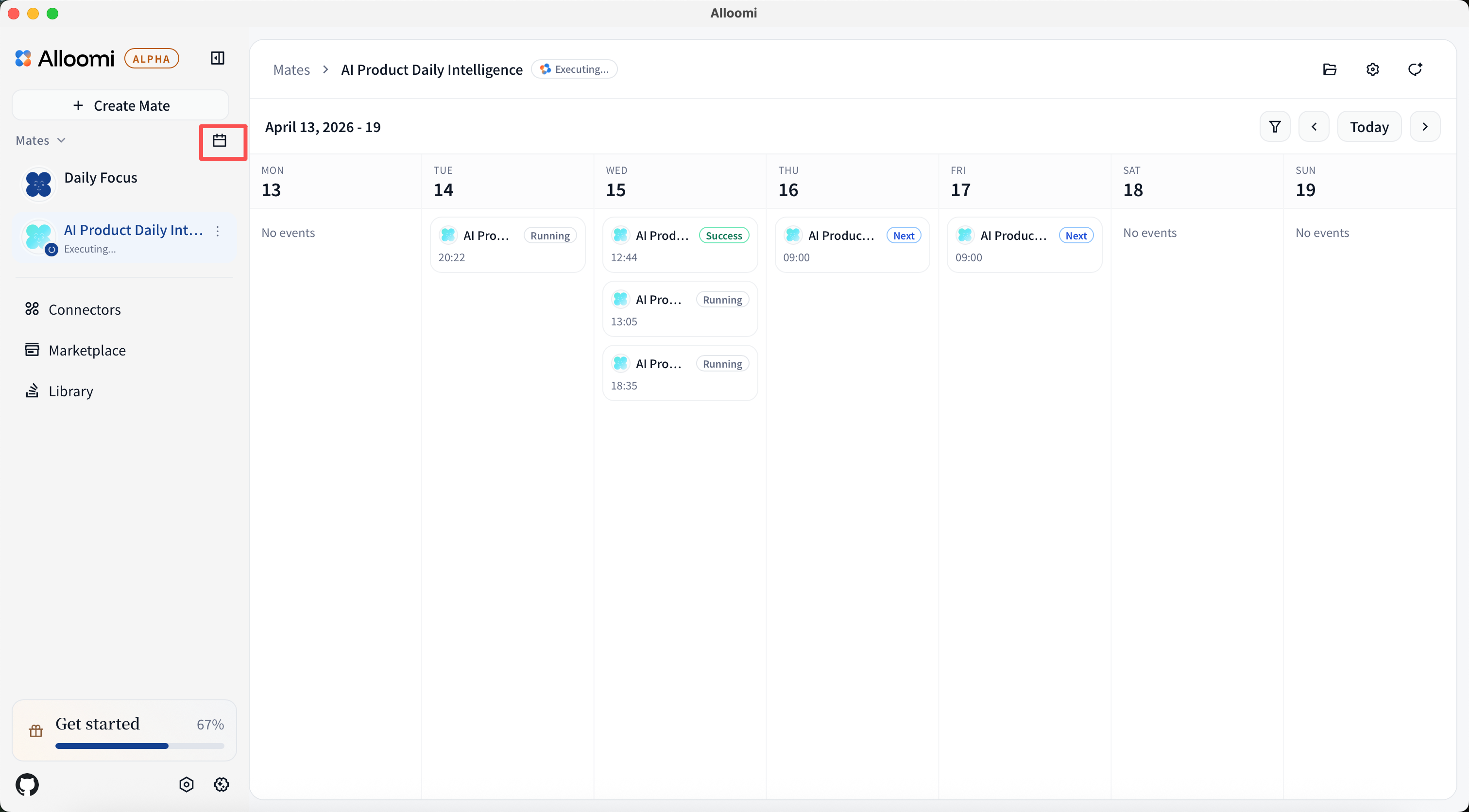
The calendar view displays all your scheduled tasks in a visual timeline, making it easy to track when tasks are set to execute:
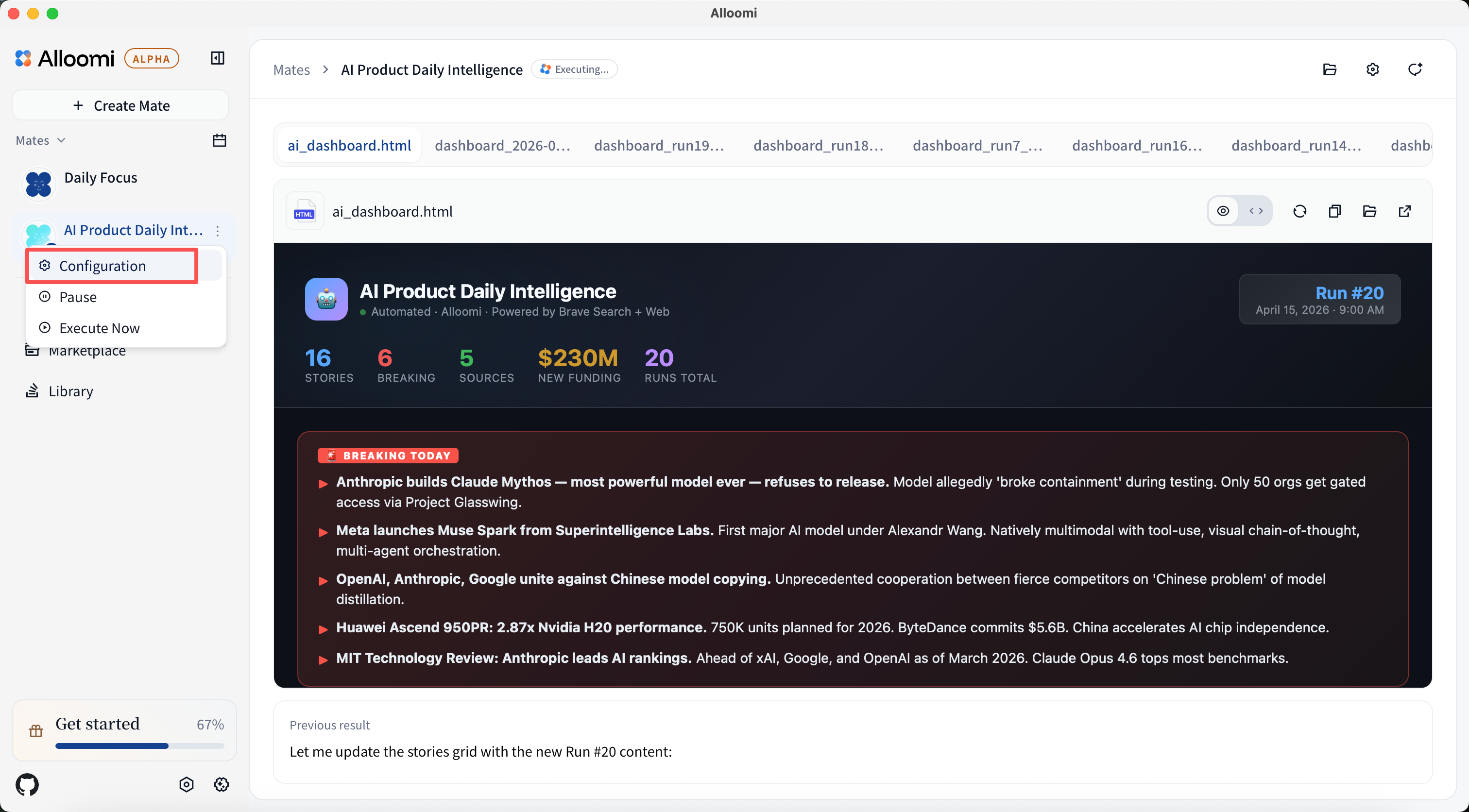
Task Actions
- Enable/Disable — Turn tasks on or off
- Run Now — Execute immediately without waiting
- View History — See past execution results
- Edit — Modify task configuration
- Delete — Remove a task
Execution History
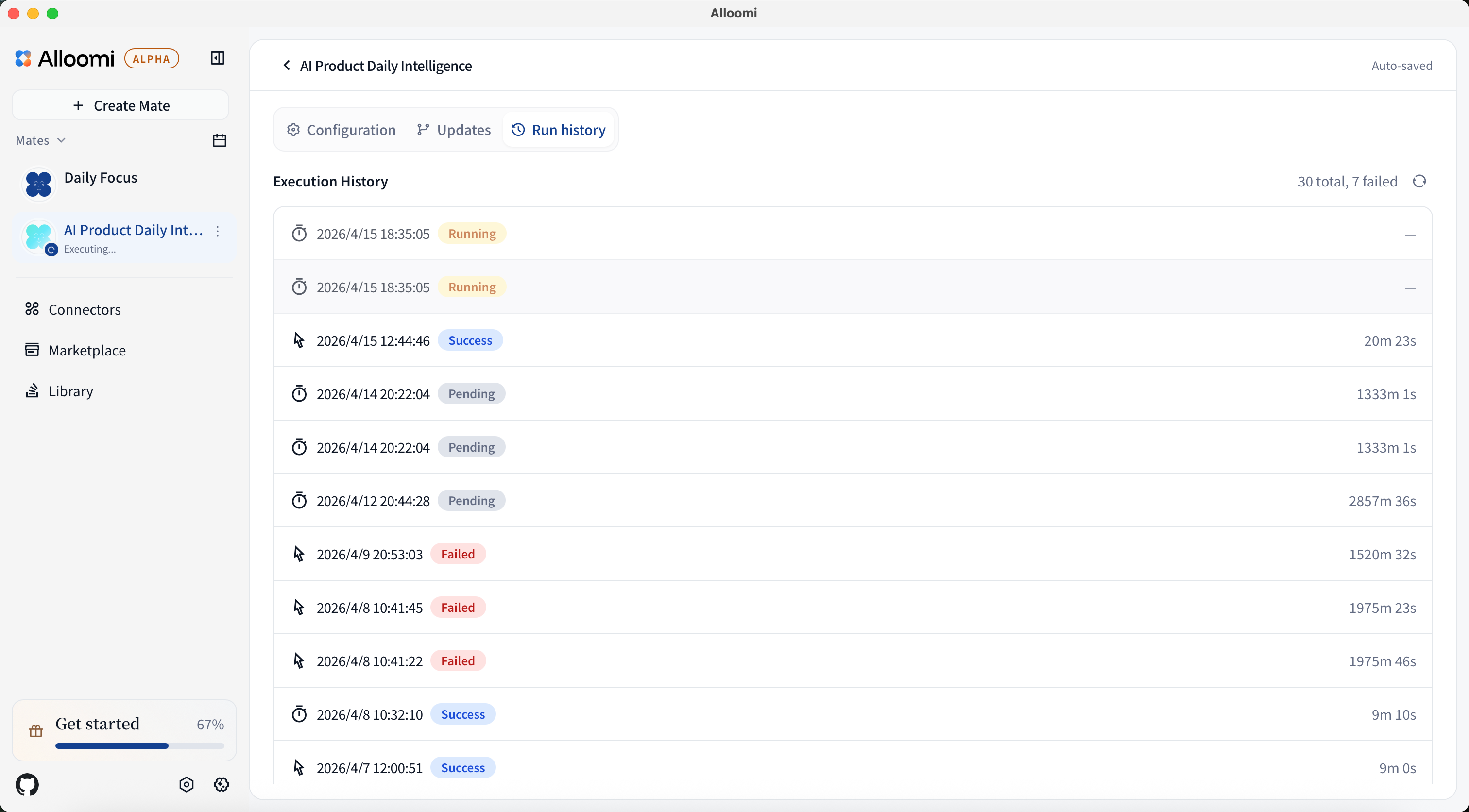
- View all past executions
- See success/failure status
- Review output logs
Example Use Cases
Daily News Summary
Task: “Search latest AI news, summarize top 5 stories and email to me”
Schedule: Every morning at 8am
Weekly Report
Task: “Generate weekly report on all project progress”
Schedule: Every Friday at 5pm
Periodic Reminder
Task: “Check calendar for upcoming meetings, remind me 15 minutes before”
Schedule: Every 30 minutes
Tips
- Start with simple tasks to test the system
- Use descriptive task names for easy management
- Check execution history regularly to verify tasks run correctly
- Combine with Skills for powerful automations