Library
Upload documents and ask AI questions about them. Build your personal knowledge library that Alloomi can query.
Overview
The Library feature allows you to:
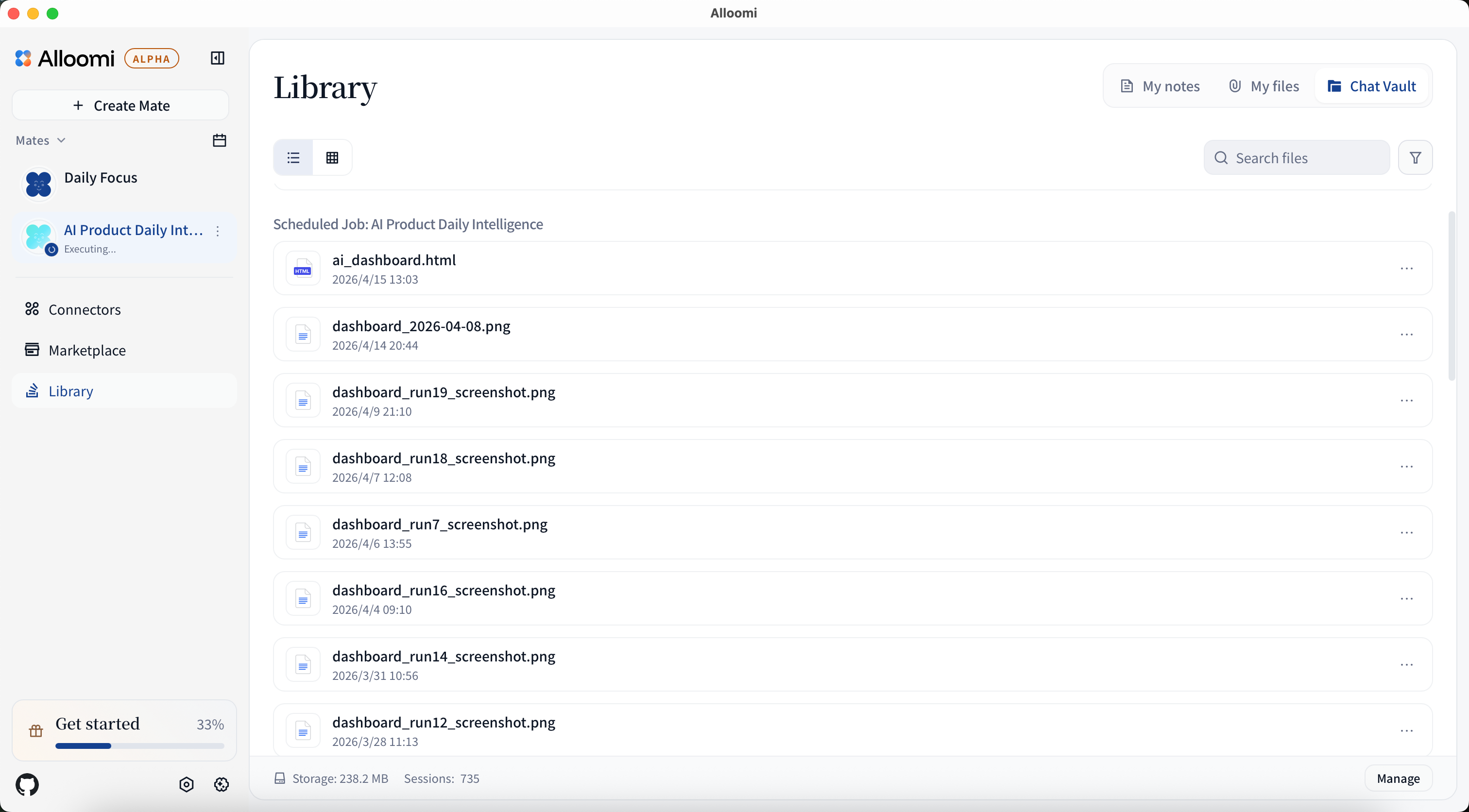
- Upload documents (PDF, Word, text, etc.)
- Ask AI questions about your documents
- Get precise answers with citations
- Build a searchable knowledge library
Supported File Types
| Format | Extension | Status |
|---|---|---|
| ✅ Supported | ||
| Word | .doc, .docx | ✅ Supported |
| Text | .txt | ✅ Supported |
| Markdown | .md | ✅ Supported |
| Excel | .xlsx, .xls | ✅ Supported |
| PowerPoint | .ppt, .pptx | ✅ Supported |
| Images | .png, .jpg, .jpeg | ✅ Supported |
How to Use
1. Upload Documents
- Go to the Library page
- Click Upload or drag-and-drop files
- Wait for processing to complete
2. Ask Questions
Once uploaded, simply ask Alloomi:
- “What’s in the document about XXX?”
- “Summarize the main points of this file”
- “Find information about [topic]”
- “What does section 3 say about [subject]?”
3. View Full Content
- Click on any document to view its full content
- Search within documents
- View metadata and upload date
Use Cases
Contract Review
Upload contracts and ask:
- “What are the payment terms?”
- “What’s the termination clause?”
- “Are there any liability limitations?”
Report Analysis
Upload reports and ask:
- “What are the key findings?”
- “Show me the revenue numbers”
- “What recommendations are made?”
Research Papers
Upload papers and ask:
- “What methodology was used?”
- “What are the main conclusions?”
- “Summarize the abstract”
Meeting Notes
Upload meeting notes and ask:
- “What decisions were made?”
- “Who committed to what?”
- “What were the action items?”
Best Practices
File Organization
- Use clear, descriptive filenames
- Group related documents together
- Delete outdated files regularly
Questioning
- Be specific in your questions
- Ask one question at a time
- Use quotes for exact phrases
Security
- Only upload documents you have rights to share
- Sensitive documents stay within your account
- Delete documents when no longer needed
Tips
- Start with shorter documents to test
- PDFs with text (not images) work best
- Large documents may take longer to process
- You can upload multiple files at once
Last updated on