Events
The Focus view is where Alloomi tells you what actually needs your attention.
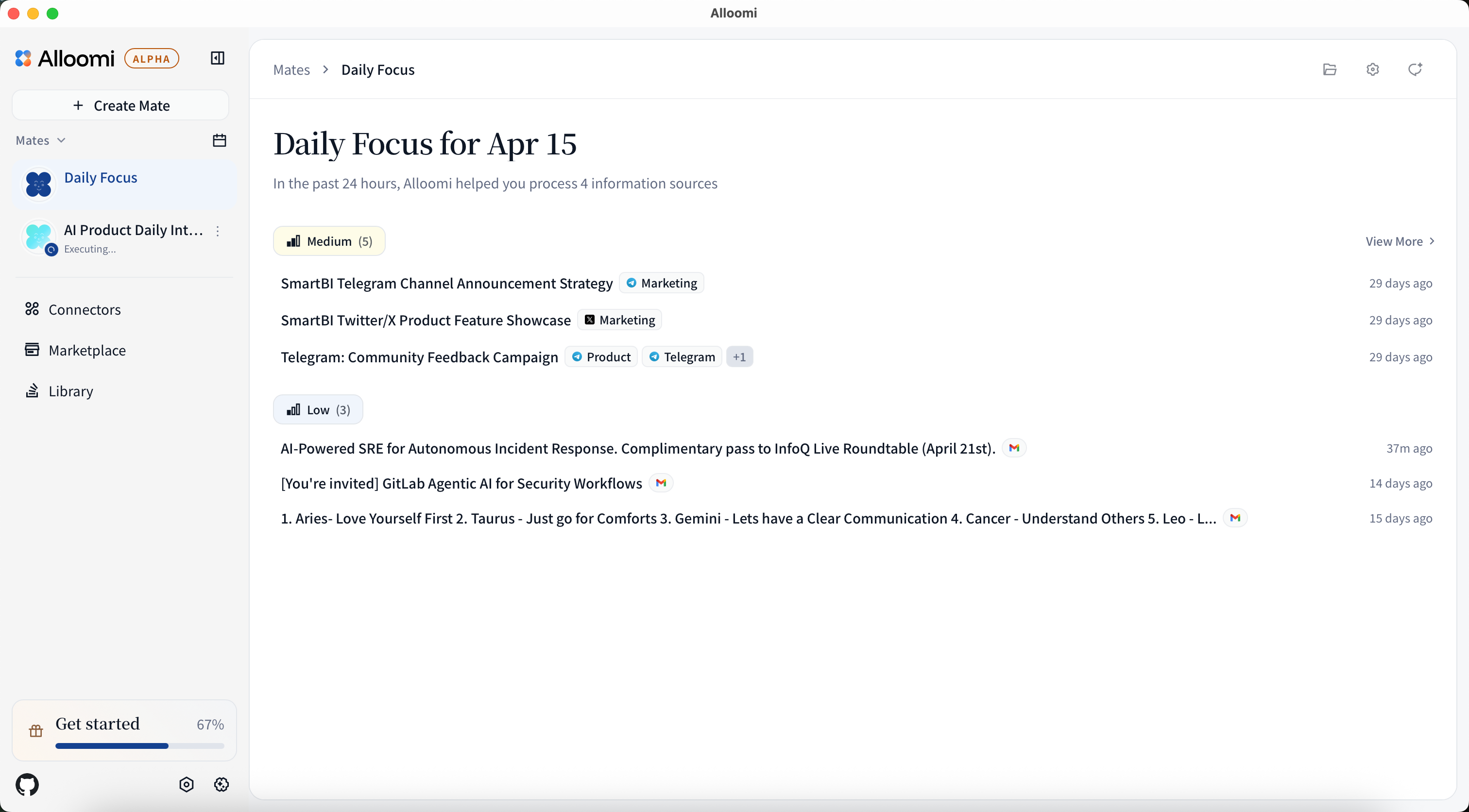
Every message from every connected platform gets analyzed. Alloomi identifies what matters, groups related messages into a single Event, and surfaces them by priority — so instead of scanning hundreds of unread messages, you see a clear, ranked list of real things happening.
How Events Are Prioritized
Alloomi automatically assigns each event a priority level based on content, urgency signals, and your Interests settings. Events are grouped into three bands:
| Priority | What it means |
|---|---|
| High | Needs your attention now — urgent asks, escalations, or activity from people you follow closely |
| Medium | Worth reviewing today — active threads, updates on things you care about |
| Low | Background noise — informational, low-signal, or things that can wait |
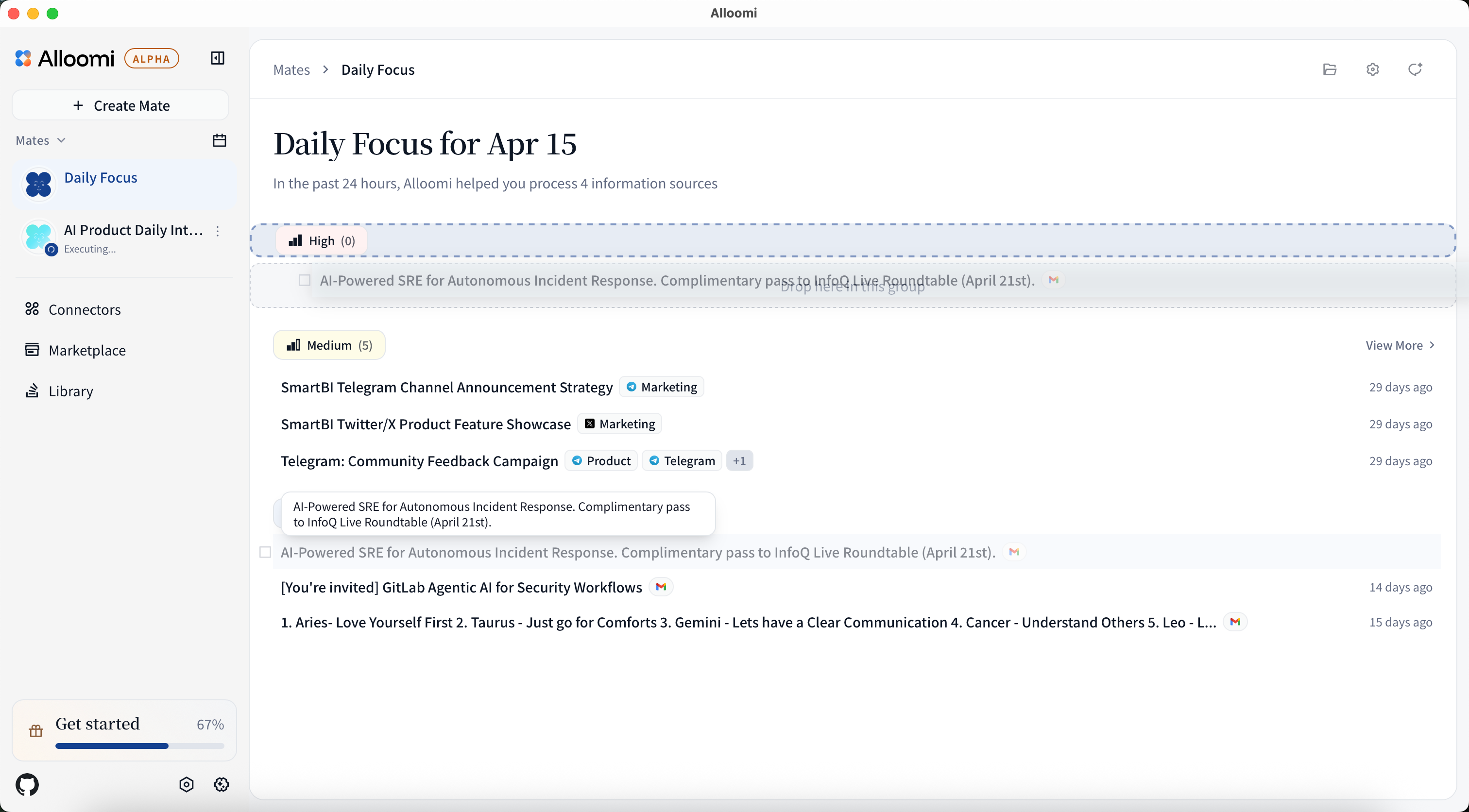
You can drag any event between priority groups to override Alloomi’s judgment. Your manual moves are remembered and help Alloomi calibrate over time.
Bulk Actions
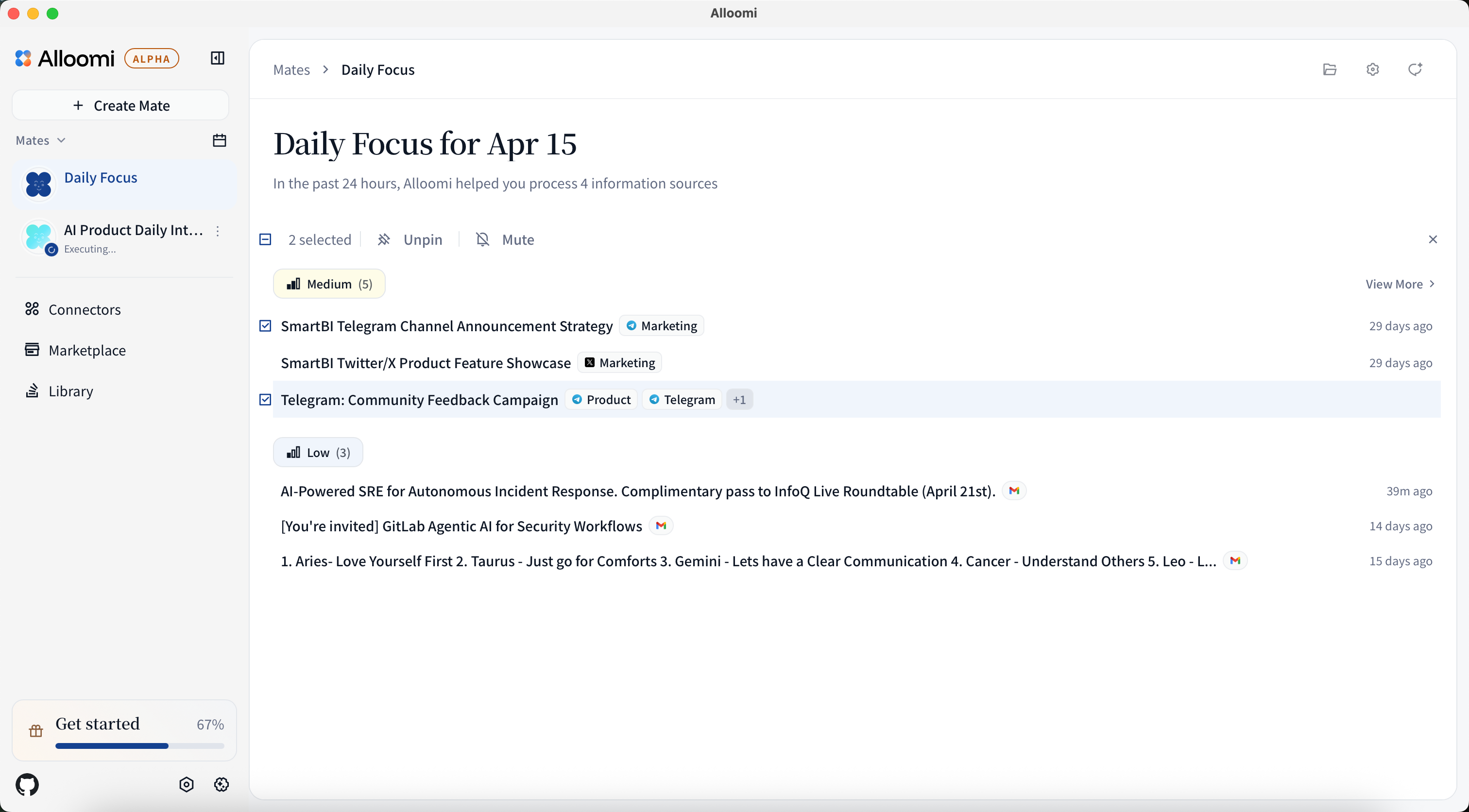
When you have multiple events to handle at once, select them with the checkbox and act in bulk:
- Unpin — only move handled events out of your main focus view.
- Archive — move handled events out of your focus and context views.
Inside an Event
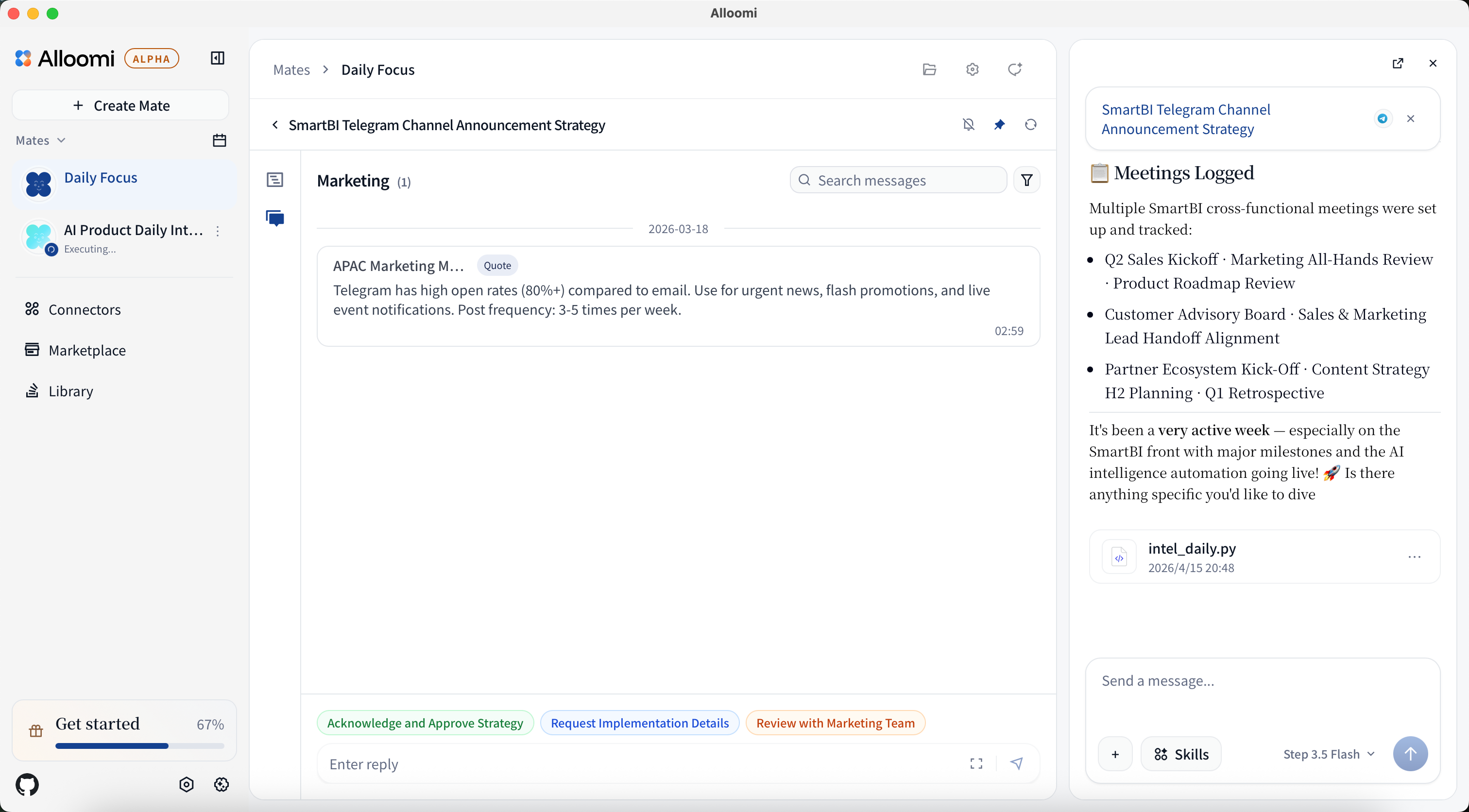
Click any event card to open its detail view. Everything about that event lives here.
Read the Full Context
See the AI-generated description, all related messages, everyone involved, and a timeline of how the event evolved — without opening five different apps.
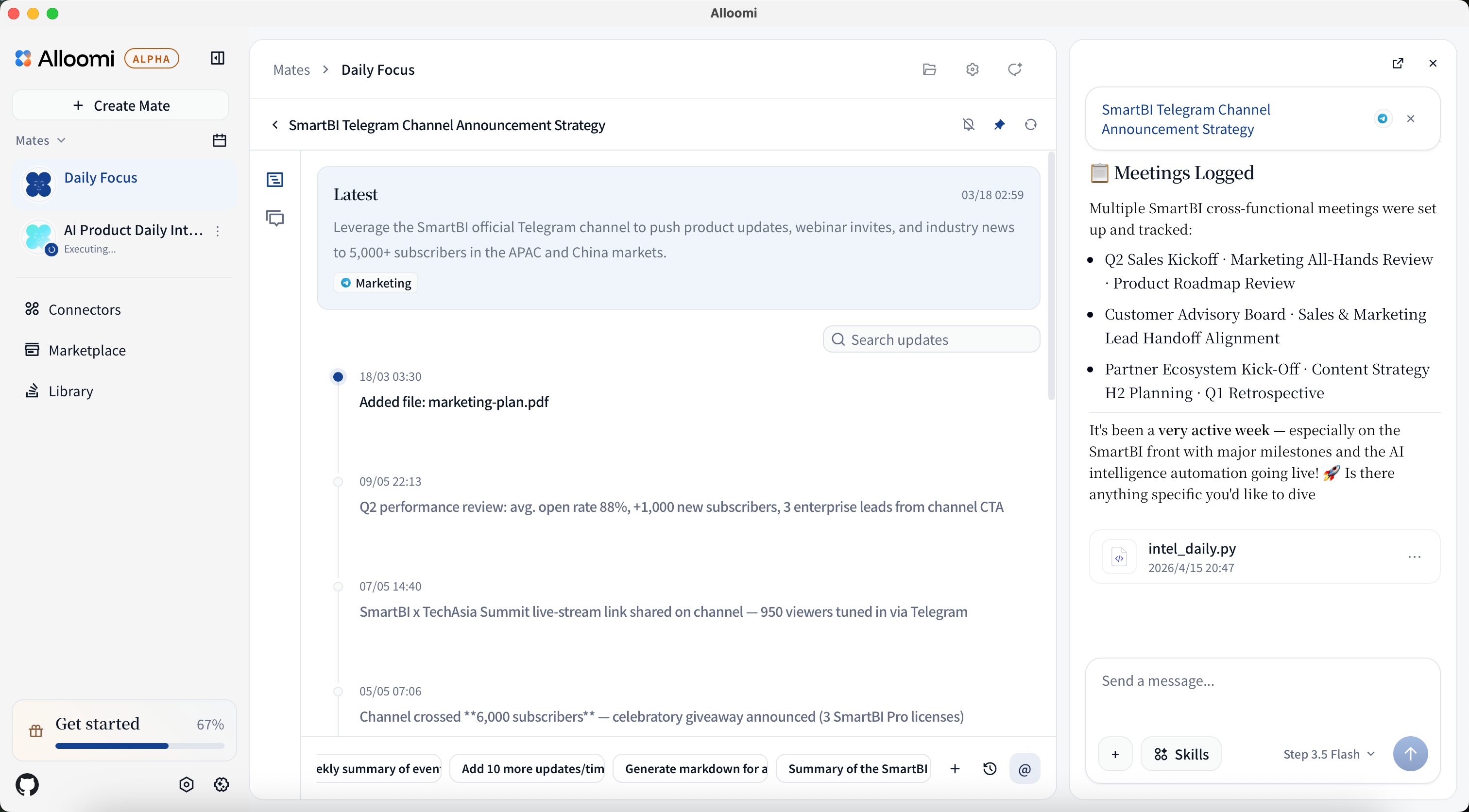
The Update Record timeline shows key milestones: when the event was created, when things changed, when it was resolved. You see the shape of a situation at a glance.
Switch to the Messages tab to see the raw thread. Each message shows its source — exactly which platform, channel, and person it came from, and when.
Ask Alloomi About the Event
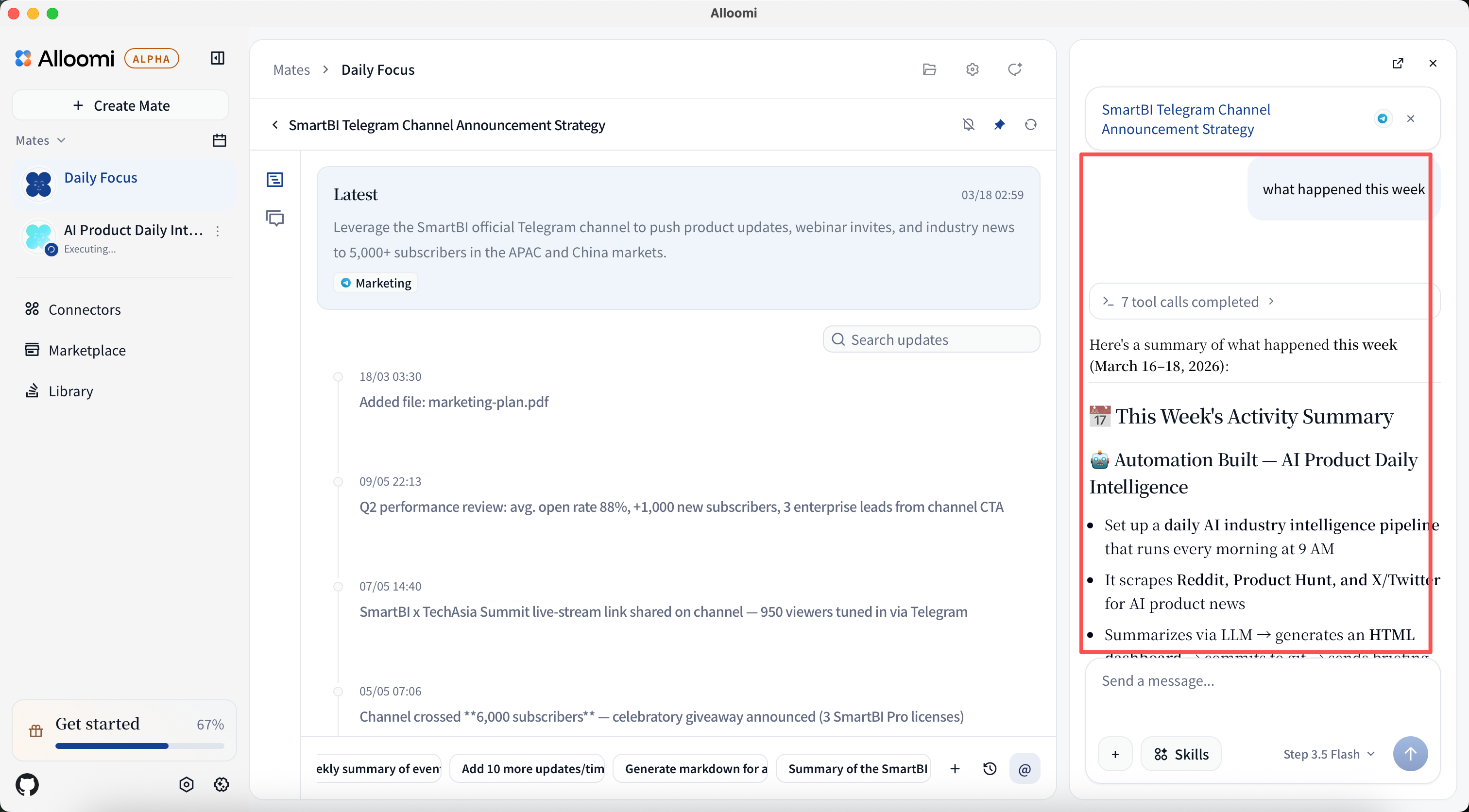
Click the @ button at the bottom of the event to open a chat with Alloomi about that specific thread. Alloomi reads the full conversation and answers based on what was actually said.
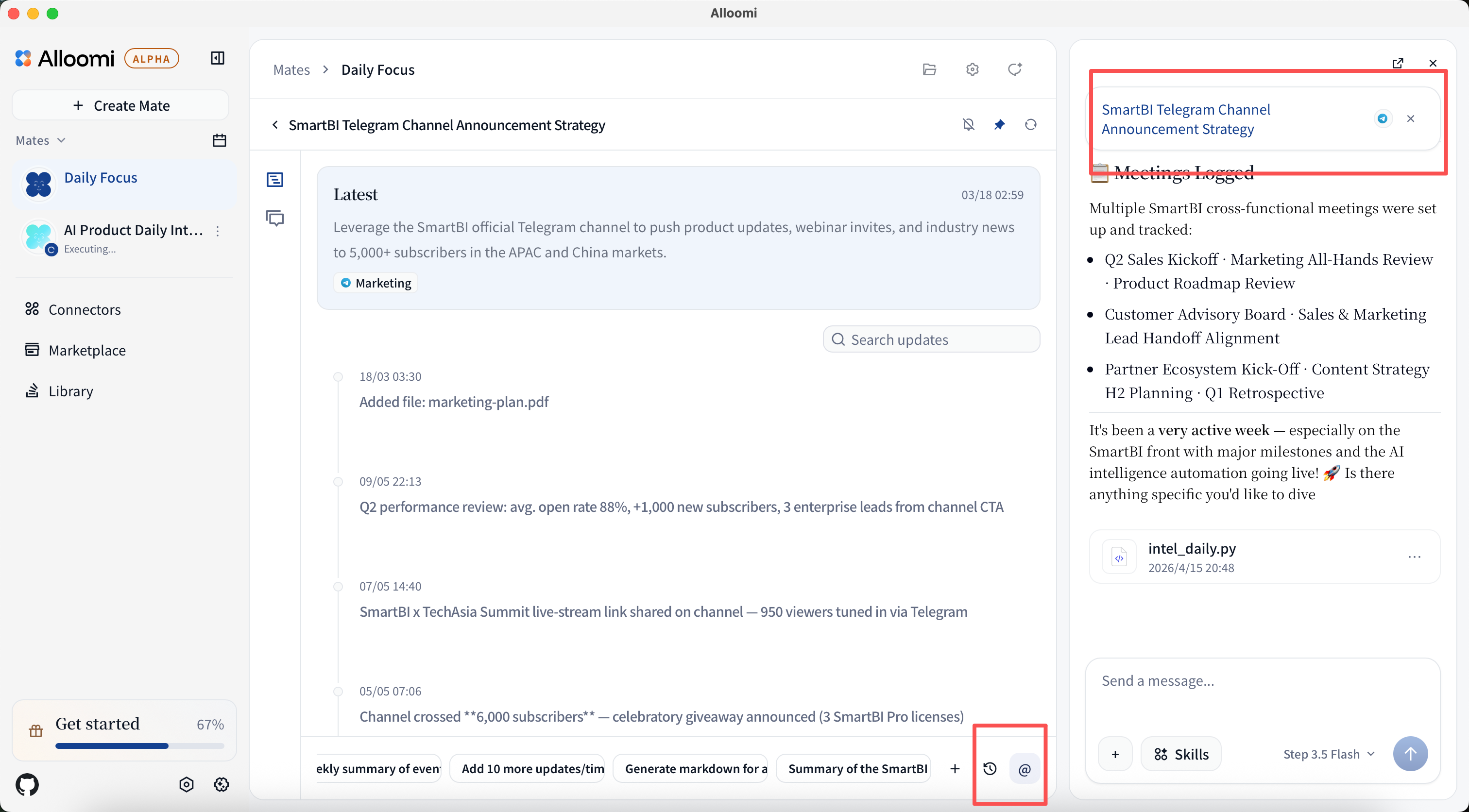
Useful things to ask:
- “What is this about?” — instant summary without reading the whole thread
- “Who are the key people?” — understand the players fast
- “What decisions were made?” — surface conclusions buried in a long thread
- “What should I reply?” — get a draft response based on context
Reply Without Leaving Alloomi
See a message that needs a response? Switch to the Reply tab inside the event. You can compose and send a reply directly back to the original platform — no need to switch apps.
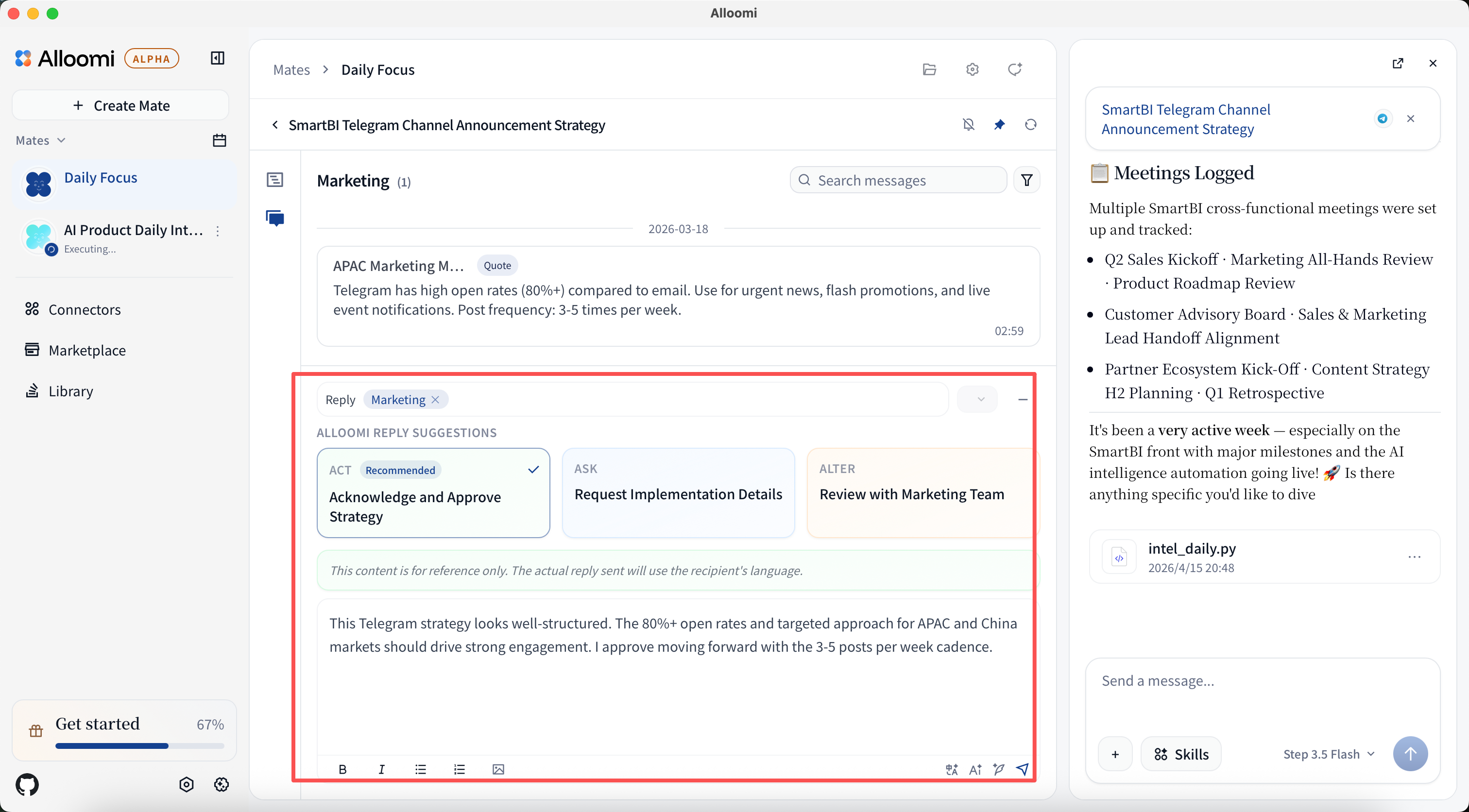
Alloomi offers three reply suggestions to get you started:
| Suggestion | When to use it |
|---|---|
| Ask — Ask Clarification | You need more information before acting |
| Act — Acknowledge Request | You’re confirming you’ve received and will handle it |
| Alter — Suggest Refinement | You want to push back or propose a different direction |
Choose one as a starting point, edit it, and send — or write from scratch.
Two tools to polish your reply:
- AI Translation — Write in your language, send in theirs. Supports English and Chinese, with more coming.
- AI Polishing — Paste a rough message and Alloomi cleans it up: fixes grammar, adjusts tone (formal / casual / friendly), makes it clearer.